Sketch to render
Turn a sketch into a photoreal room.
Draw the room by hand, or upload a line drawing or a screenshot from a 3D app. archelier renders it as a real-looking space — materials, light and furniture included — in the style you choose.
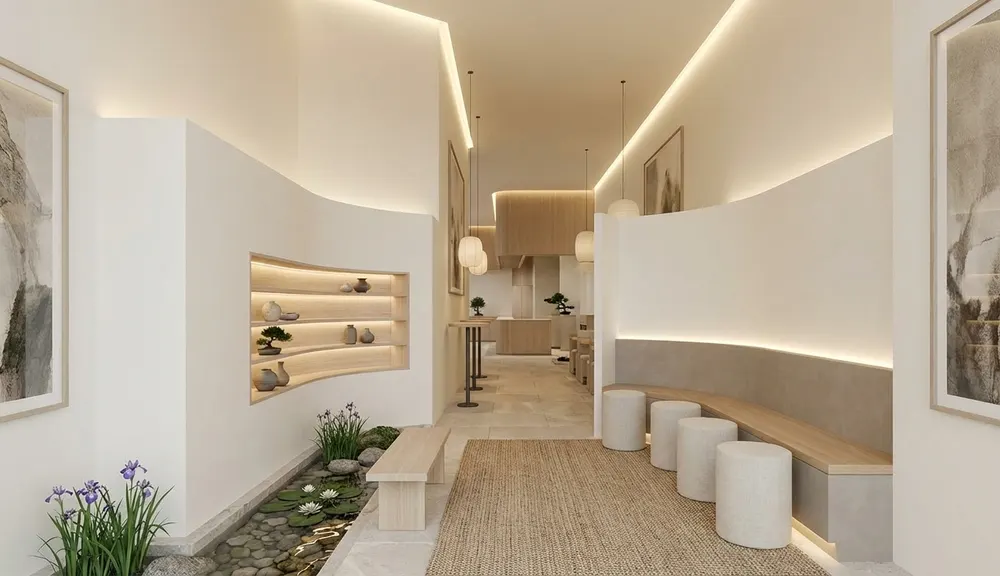
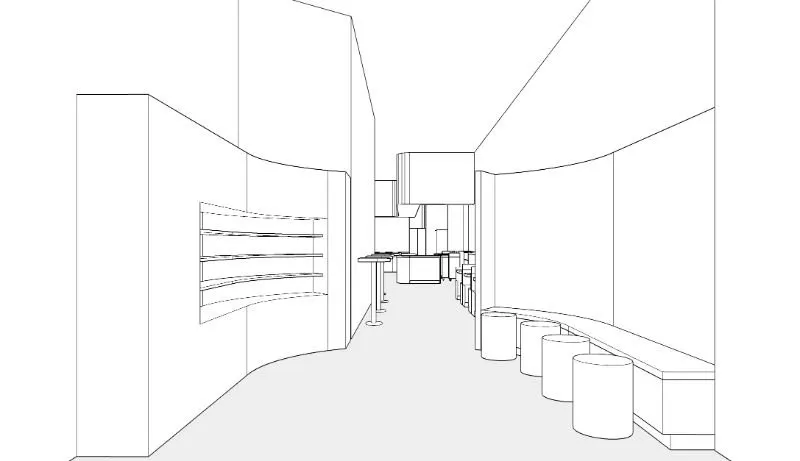 BeforeAfter
How it works
Upload the sketch
A pencil sketch, a line drawing, or a screenshot from a 3D app.
Pick a style
Choose one of 28 interior styles or describe the materials you have in mind.
Refine
Circle any part of the render and type what you want there instead.
Good to know
- The render follows the lines of your sketch. Anything the sketch leaves open is filled in by the AI.
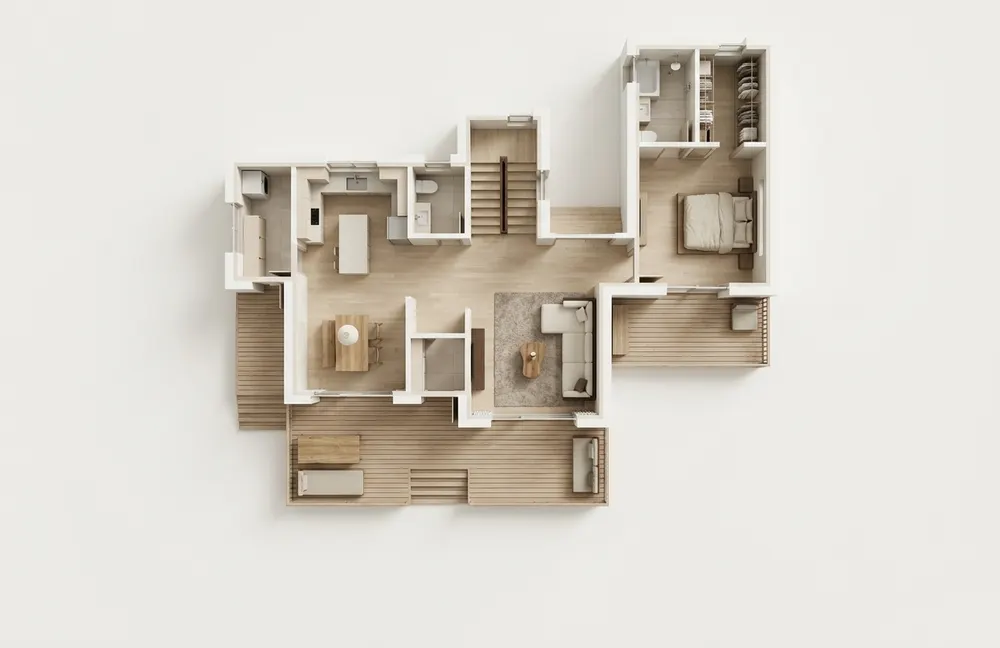
- Drawing a top-down plan rather than a view of a room? Use floor plan mode instead.
- Your sketches and designs stay private unless you share them.
Questions
Can I render a hand-drawn sketch?
Yes. Upload a photo or scan of the sketch, pick a style, and archelier renders it as a photoreal space.
Does it work with screenshots from 3D apps?
Yes. A screenshot of a 3D model works the same way as a sketch.
Is it free?
Yes. archelier gives everyone free designs every day, with no subscription. If you want more, you can buy a credit pack.
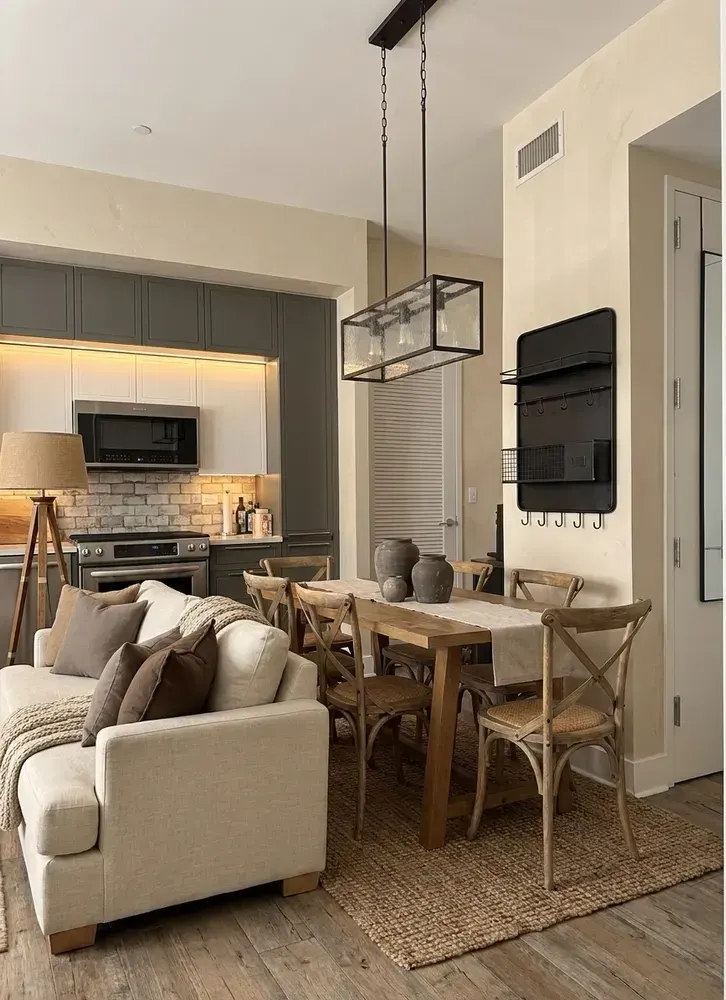 Room redesign
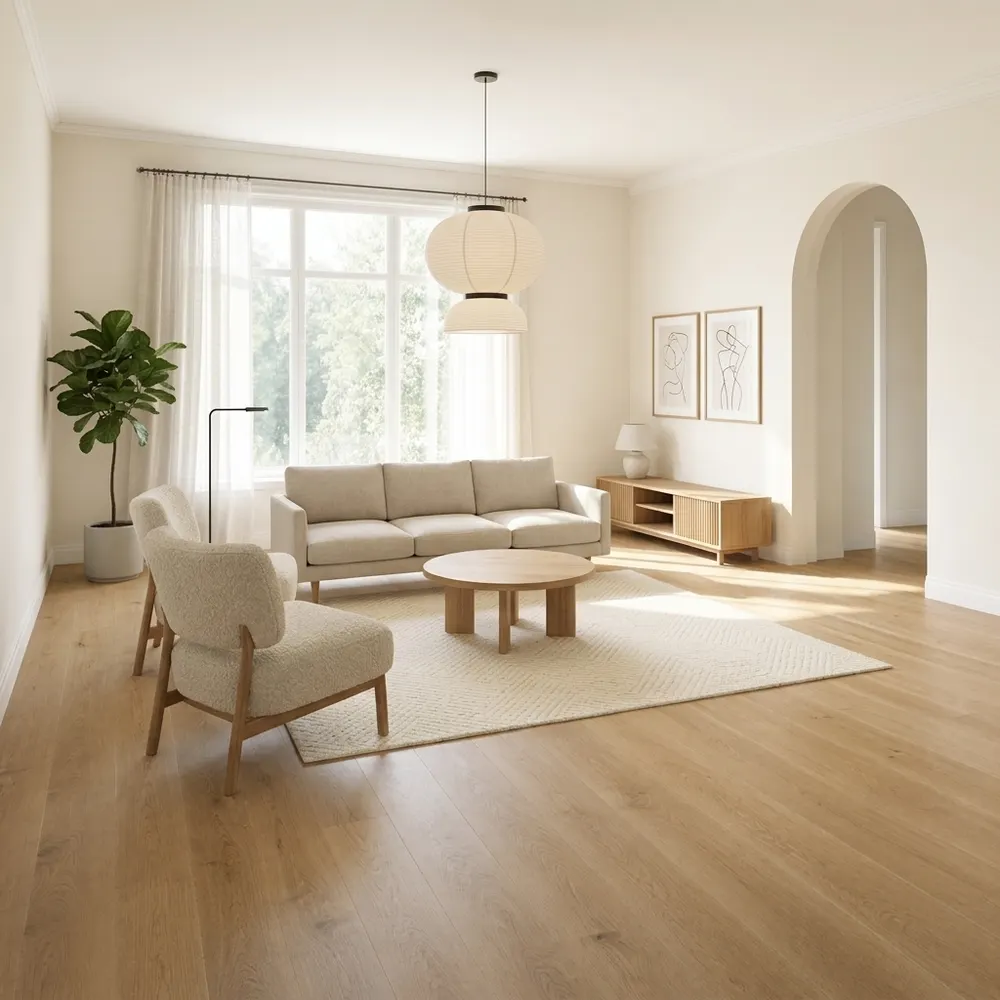 Virtual staging
 Floor plan to 3D
 Exterior & garden
Try it on your own space.
Free designs every day, no subscription. On your phone and on the web.